
Where to Store Your Layered PSD Files When a Single Painting Runs Into Gigabytes
A single layered painting can reach several gigabytes, and a folder of a year’s finished work can fill a laptop. Cloud storage for large digital art files works best when it is split into separate jobs, each handled by the tool that suits it, rather than one folder on one service holding everything.
The three jobs your painting files need storage to do
Your files need to be stored in three different ways, and no one setup does all three well.
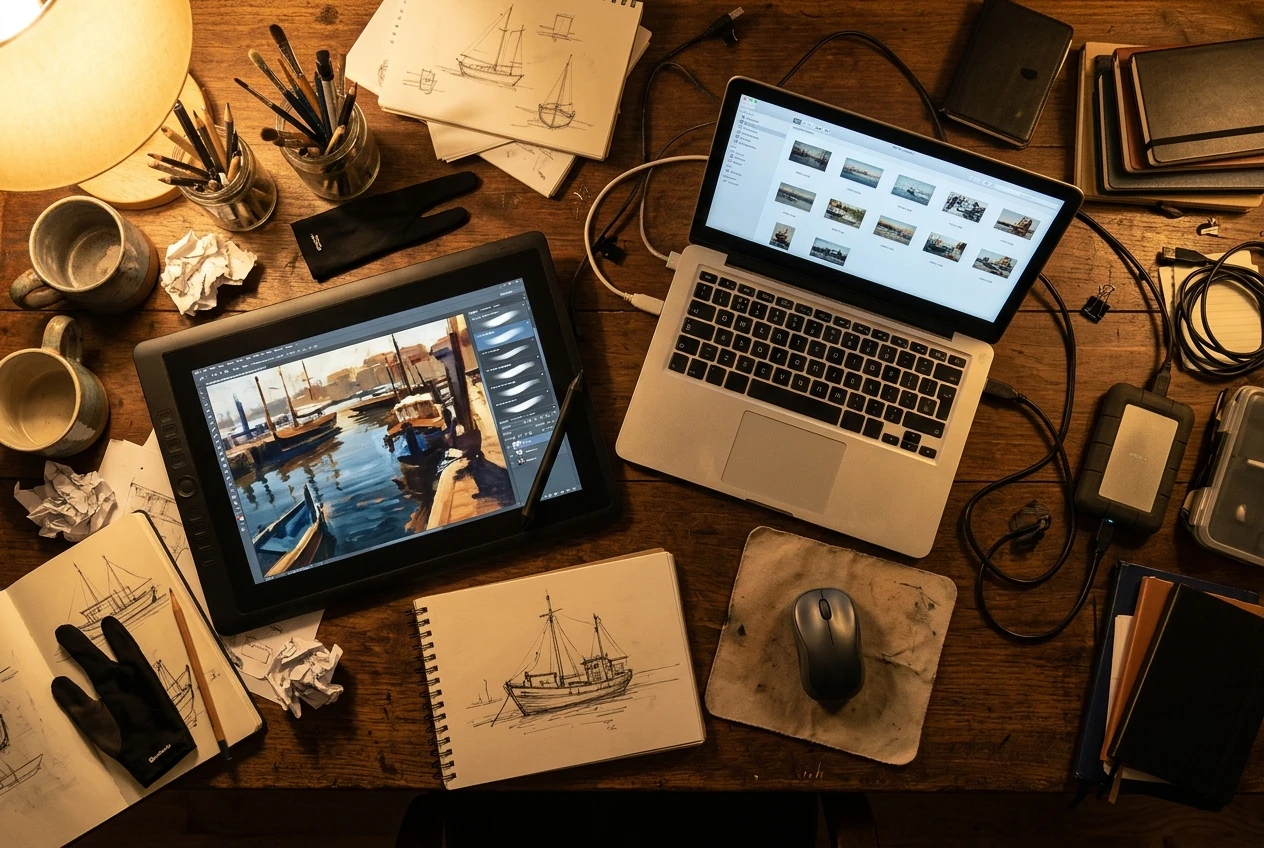
- Working copy. The file you are painting on right now. It needs fast access, quick saves and reliable sync between devices.
- Archive. Finished layered files you may reopen for a reprint, a revision or a client change. It needs to hold a lot cheaply and keep files intact for years. Speed matters less.
- Backup. A copy that survives a corrupted save, a dead drive, a deleted folder or a locked cloud account. It needs to be independent of the first two.
Most lost work comes from asking one place to do all three. A synced folder that holds your active file, your 400 finished paintings and your only copy of everything gets slow, fills up, and fails all at once.
What makes layered art files hard on cloud sync
Cloud sync was designed around documents that are small and change rarely. A layered painting is the opposite: it is large, it is saved often, and every save changes a big part of the file.
Several problems follow from that.
- Whole-file uploads. Some services upload only the changed parts of a file. Others re-upload the entire file after every save. With a 1.5 GB PSD saved every ten minutes, that difference decides whether sync keeps up or runs constantly in the background.
- Saves during sync. If the sync client reads a file while Photoshop or Clip Studio is still writing it, you can end up with a partial upload or a “conflicted copy” sitting next to your original.
- Format limits. A PSD file has a 2 GB size limit, and Photoshop’s PSB format exists for anything beyond that. Some services and some preview tools handle large files poorly, and some cap the size of a single file, so check before you rely on them.
- Package formats. A Procreate file is a package of data rather than a flat image, and exporting it to PSD produces a different, often larger, file. Decide which version you are storing, because they are not interchangeable.
- Layer count. A file with hundreds of layers is slower to open and save than its size suggests, which makes every sync stall more noticeable. Keeping the layer structure tidy helps your own workflow as well as storage, and the guide on how to organize layers in digital painting covers that side of it.
Set up a working folder that syncs without corrupting your open file
Keep one folder for files you are actively painting. Treat it as temporary space, not a permanent home.
A few habits keep it safe:
- Put only current projects in it. A small folder syncs faster, and fewer files means fewer chances for a conflict.
- Save a new version rather than overwriting constantly. Saving as
harbor-scene_v14.psdafter a major step gives you a recoverable point even if sync misbehaves on the live file. - Let sync finish before you switch devices. Check the sync status icon before you close the laptop. Opening an unfinished upload on another machine is the usual way to create two diverging copies.
- Do not open the same file on two devices at once. Close it on one device first. Two open copies saved in turn produce a conflict, and the later save can overwrite real work.
- Turn on offline copies for the working folder. A cloud-only placeholder file has to download before you can open it, and a failed download at the wrong moment is avoidable.
If your service offers a pause-sync option, use it during long painting sessions on big files and resume when you take a break. That stops the client from reading the file mid-save, and the trade-off is that your other devices lag behind until you resume.
Keep finished layered files in an archive, not your working drive
When a painting is done, move it out of the working folder. The file has stopped changing, so it no longer needs to sync live.
A workable archive routine:
- Save the final layered file, along with a flattened export (PNG or high-quality JPEG) for quick viewing.
- Name it with the project and a date, for example
2026-11_harbor-scene_final.psd. - Move it to the archive location, then confirm it opens from there before you delete it from the working drive.
- Keep a small preview image beside it, so you can find work without opening multi-gigabyte files.
For the archive itself, an object-storage or archive-tier cloud service can suit this job, because the files are written once and rarely read. Retrieval on these tiers can be slower or may carry fees for downloading, so read the terms before you move your only copy there. An external drive is a reasonable archive too, as long as it is not the only place those files live.
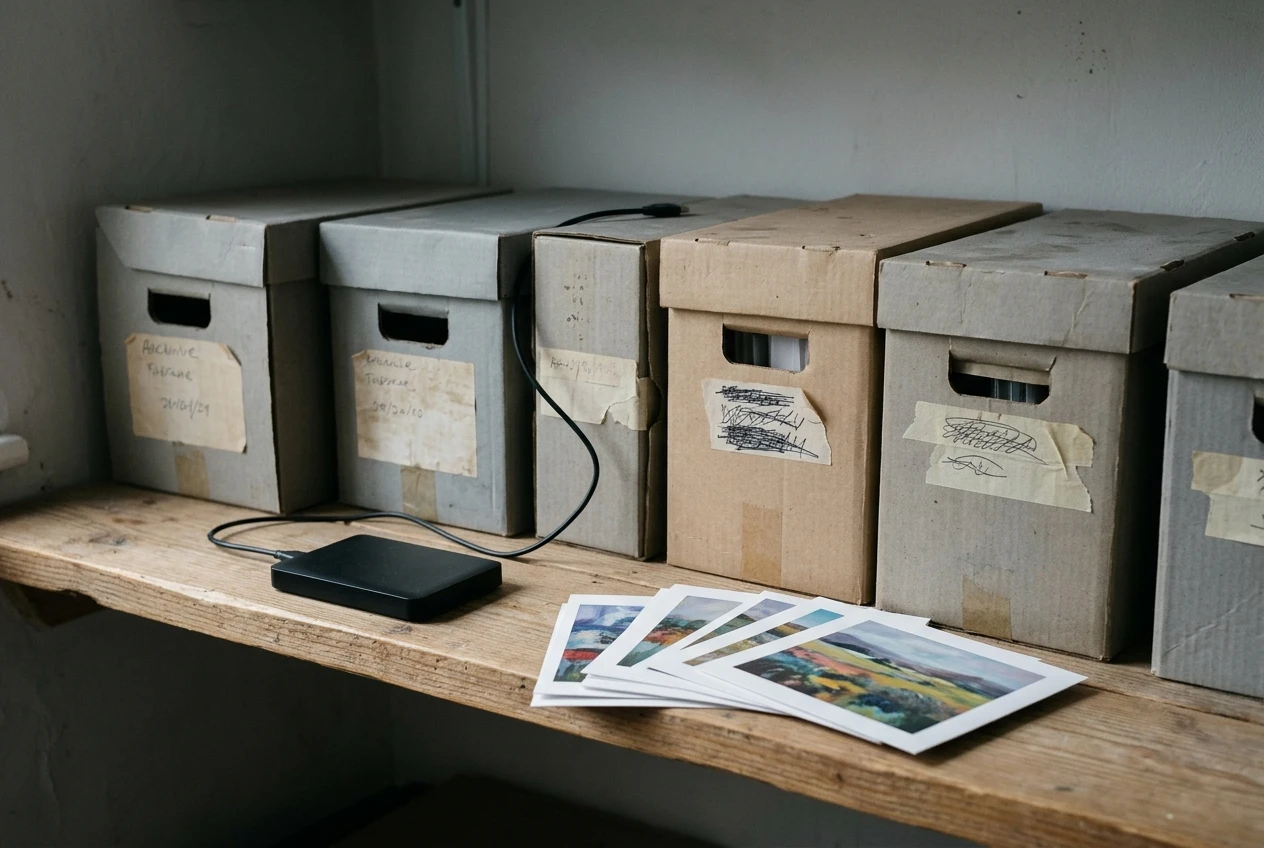
Organise the archive by year or project, not by software. In three years you will remember when you painted something, and you may not remember whether it was a PSD or a Procreate file.
What to check on any cloud service before you trust it with your art
Judge a service on how it treats large files, not on its marketing. Before you move real work onto one, test it with a copy of your biggest file and look at these points:
- Maximum file size. Confirm that a single file as large as your biggest PSB or TIFF is allowed. Do not assume.
- Upload behaviour on large files. Does an interrupted upload resume, or restart from zero? Does it upload only the changed parts of a file after a save, or the whole file?
- Behaviour when a file is saved mid-session. Save the file a few times with sync running and see whether you get conflicted copies, errors or stalled uploads.
- Version history. How many versions are kept, for how long, and can you restore one without downloading everything? Check whether large files count against any limit.
- Offline access. Can you mark folders to stay on the device, and does that survive a restart?
- Deleted file recovery. Find out how long deleted files stay recoverable, and whether recovery covers a whole folder.
- Account recovery. If you lose access to your login, what happens to the files? A cloud account is one point of failure, which is why the final section of this article exists.
- Free storage and limits. Look at actual terms, since quotas and limits change.
Run the test over a week of normal painting rather than one afternoon. Problems with large files tend to show up on the third or fourth save of a session, not the first.
Version history and the “I saved over the wrong layer” rescue
Version history is the cloud feature most useful to a painter, and the one most often assumed rather than checked. It lets you go back to the file as it was yesterday, before you merged the layers you needed or painted over the one you meant to keep.
Know three things before you need it:
- How far back it goes. Some services keep versions for a fixed number of days, or a fixed number of versions. A big file saved often can use up a version limit quickly.
- Whether you can restore to a copy. The safest restore creates a new file and leaves the current one alone, so you can compare before you decide.
- Where it lives. Version history on a service does not exist in your local folder. If the service is down, you cannot reach it.
Version history does not replace your own saves. Saving numbered versions at milestones (after the underpainting, after the main values, before the final detail pass) gives you restore points that you control. It costs disk space, so prune older numbered versions inside a finished project once the final file is archived. Keep the last few, plus any version from before a big change.
When you do need a rescue, work in this order. Stop painting and close the file without saving. Look for a numbered version of your own first, then the service’s version history, then your backup. Restore to a separate copy and open it to confirm the layer is there before you overwrite anything.
Moving files between your tablet, laptop and desktop without waiting around
Moving files between devices is slow when you try to move everything. The fix is to move less.
- Sync only the active folder to every device. Your desktop may hold the archive. Your tablet needs only the project you are painting this week.
- Use selective sync or on-demand files. Choose which folders are kept on each device, so a 256 GB tablet is not trying to hold your whole back catalogue.
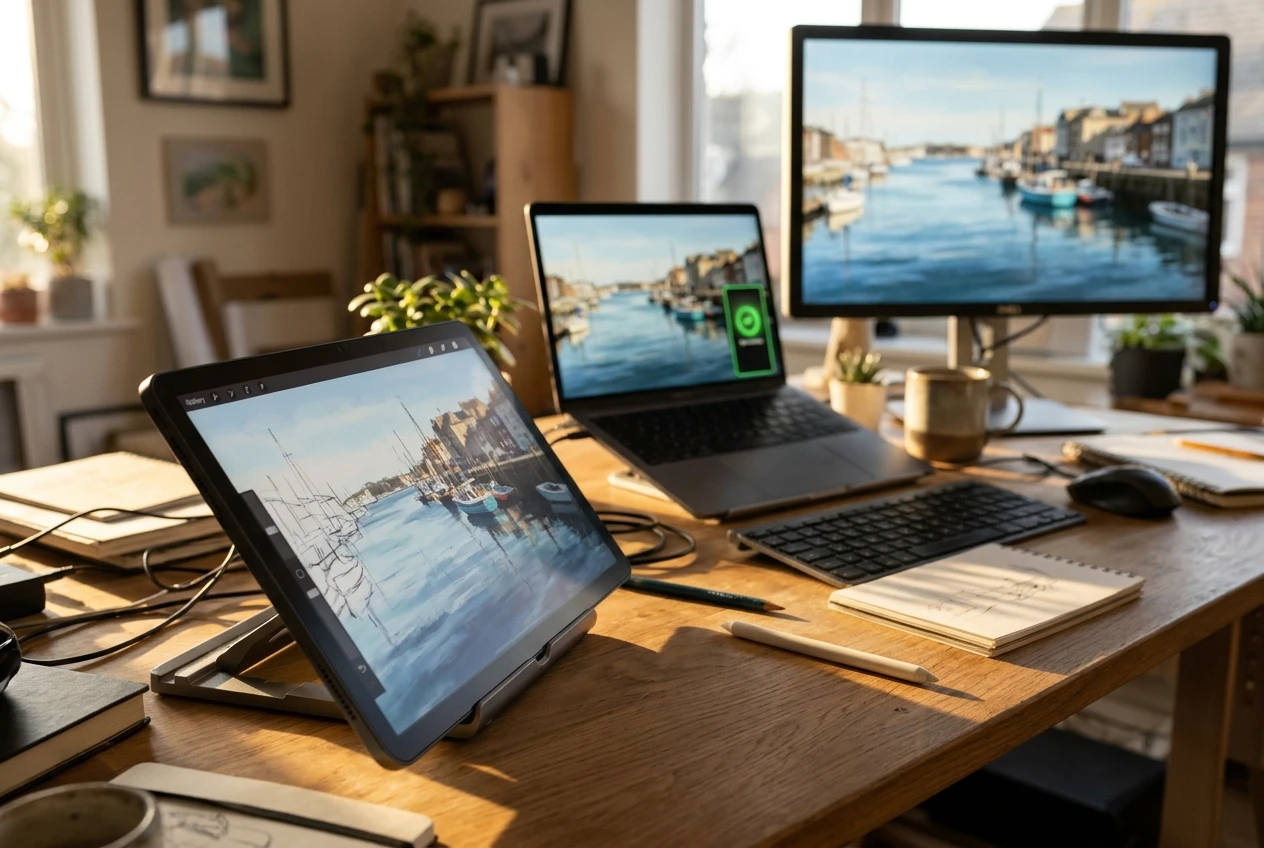
- Plan the handoff. If you start a painting on a desktop and want to continue on a tablet, finish the save, wait for the sync icon to confirm, and then pick up on the other device. For a heavy file, expect the first open on the second device to take a while.
- Consider working copies at lower resolution for the road. If you only need to sketch or block in on a tablet, a smaller canvas version of the composition is quicker to move. You can bring the result back into the full-size file later, though it adds a step and needs care with layer alignment.
- Know each app’s limits. Mobile apps and desktop apps do not always read the same file features identically. Open a test file on each device, with your real brushes, blend modes and layer types, before you rely on the handoff for client work. If you are still deciding on hardware, the comparison of iPad Pro vs Wacom Cintiq for digital painting covers how the two differ as working devices.
Wired connections help when you are moving a lot at once. A first upload of a large archive over Wi-Fi can take days, so start it overnight and leave the machine plugged in, with sleep settings adjusted so it does not pause.
Backing up with a second copy that sits outside the cloud
A synced cloud folder is not a backup. When you delete or corrupt a file on one device, sync carries that change to the others. If an account is suspended or locked, the files can be out of reach with no warning.
A common guideline is the 3-2-1 rule: three copies of your data, on two different types of storage, with one copy in a different location. For a painter, it can look like this:
- Copy 1: the working file on your computer.
- Copy 2: the cloud sync of the working folder, which handles access from other devices and some version history.
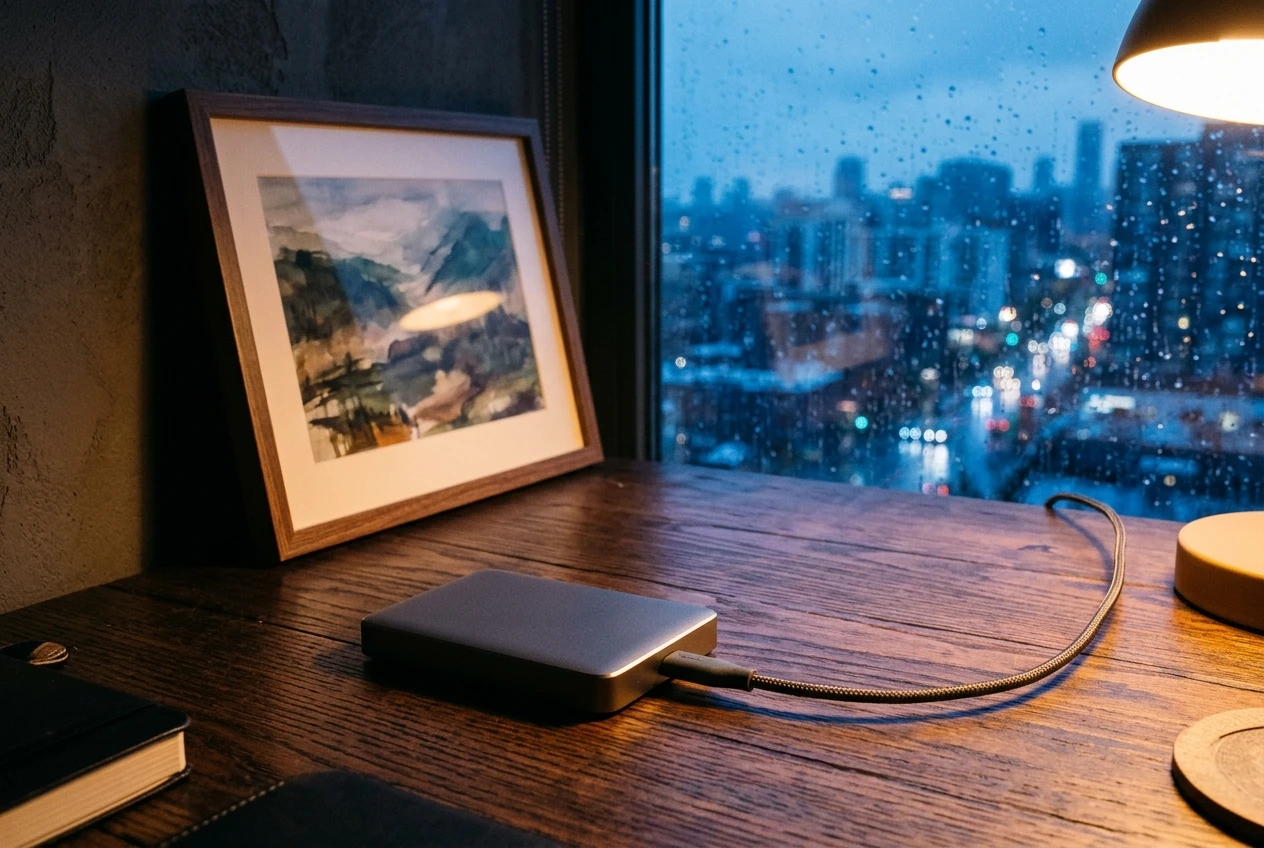
- Copy 3: an external drive that holds your archive and recent work, kept disconnected when it is not backing up.
If you can manage a fourth, a second drive kept at another location, or a separate cloud backup service from the one you use for sync, protects you from fire, theft and account problems.
A few practical points:
- Automate it. A backup you have to remember is a backup that goes stale. Schedule it weekly at least, and daily while you are mid-project.
- Test a restore. Once, pick an old file from the backup and open it. A backup you have never opened is an assumption.
- Back up finished files at the point you archive them. The moment a painting leaves the working folder is when it is most likely to end up in only one place.
- Replace drives on a schedule. Hard drives and SSDs wear out. Do not wait for the warning.
Once this is in place, a corrupted save costs you at most the work since your last numbered version. A dead laptop costs you the time to set up another. A locked cloud account costs you a few days of inconvenience, because your work still sits on a drive on your desk.